The APSDAI ticket system popup is displayed globally by default, but there's also a hidden mode that can be triggered with specific commands in certain scenarios. If you're using a website built with Elementor, you may encounter issues where you can't link to OnClick attributes. Let's walk through how to solve this problem.
Step 1: Set CSS Class
First, open Elementor and go to the button editor. Switch to "Advanced Settings" and in the CSS Classes field, set a fixed value for the current button, such as "apsdaixx"
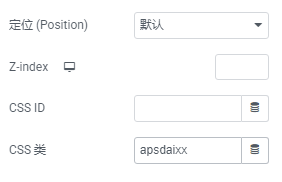
Step 2: Add Custom CSS
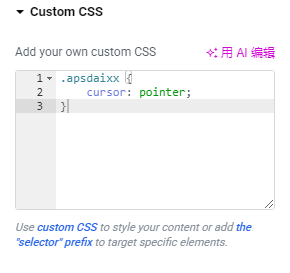
Add the following code in Custom CSS; where apsdaixx is the unique value you just set for the button. After adding this, the cursor will change to a pointer when hovering over the button.
.apsdaixx {
    cursor: pointer;
}
Step 3: Add JS Code
Add a JS code snippet to the header or footer of this page. Note that "apsdaixx" in this code should be the custom value you set for the button:
<script>
window.addEventListener("load", function () {
    document.querySelectorAll('.apsdaixx').forEach(function (element) {
        element.addEventListener('click', function (event) {
            event.preventDefault();
            ApsdaiInstance().openTickets();
        });
    });
})
</script>