In the Merchant Center's "Orders - Invoice List", you can manage all orders that require invoicing in one place.
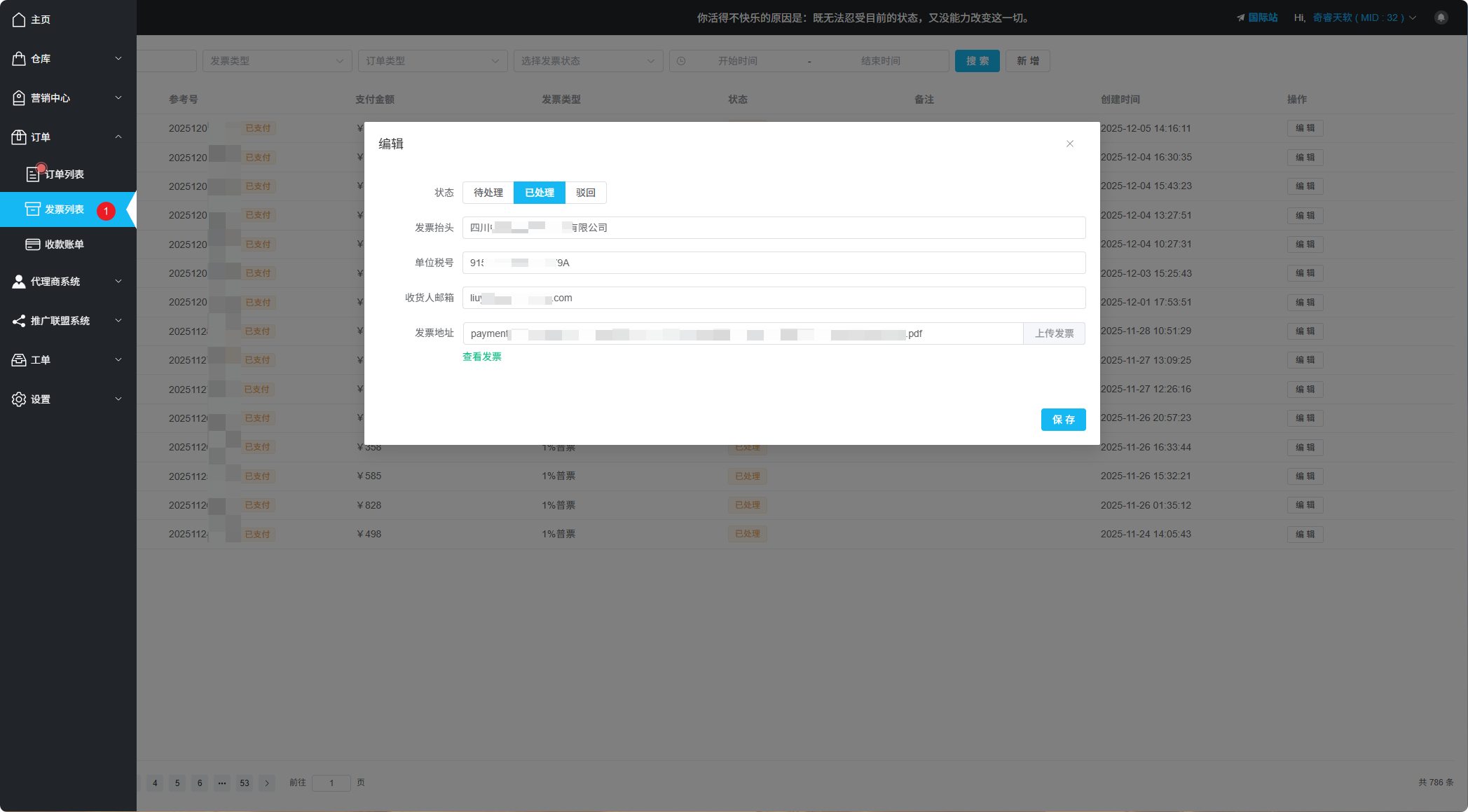
Invoice List Interface
Invoice Management
In the invoice list, you can perform the following operations on invoice requests:
- Reject Request - If invoice information is incorrect, you can reject the invoice request
- Upload Invoice - Upload the invoice file after issuing
- Auto Notification - After uploading, the system automatically sends email notification to customers for download
Manually Add Invoice
If a customer forgot to submit invoice information when placing an order, you can manually add it in the invoice list:
1
Click Add
Click the Add button in the invoice list
2
Enter Order Number
Enter the order number, the system will automatically identify the related order from the order list
3
Fill Invoice Information
Fill in complete invoice information for the customer
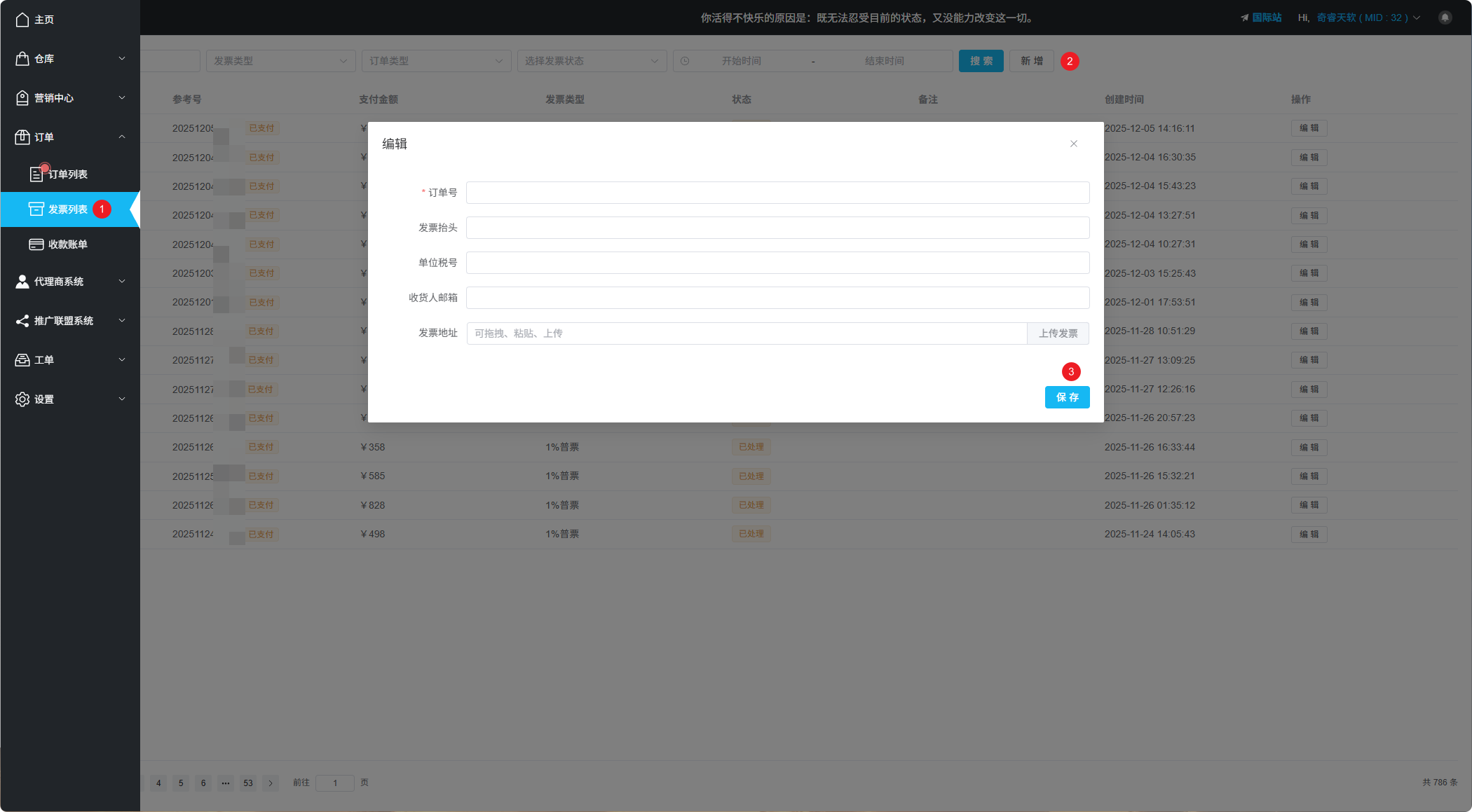
Manually Add Invoice Information
Invoice Storage
Once uploaded, invoices will be stored for users for a long time. Users can view invoices through the following methods:
- After receiving email notification, click the link for quick login to view
- Log in through the User Center using email verification code
- View all orders and invoice information under that email
User Self-Service Invoicing
Users can also submit invoice requests through the User Center: https://client.apsdai.com/#/order/list
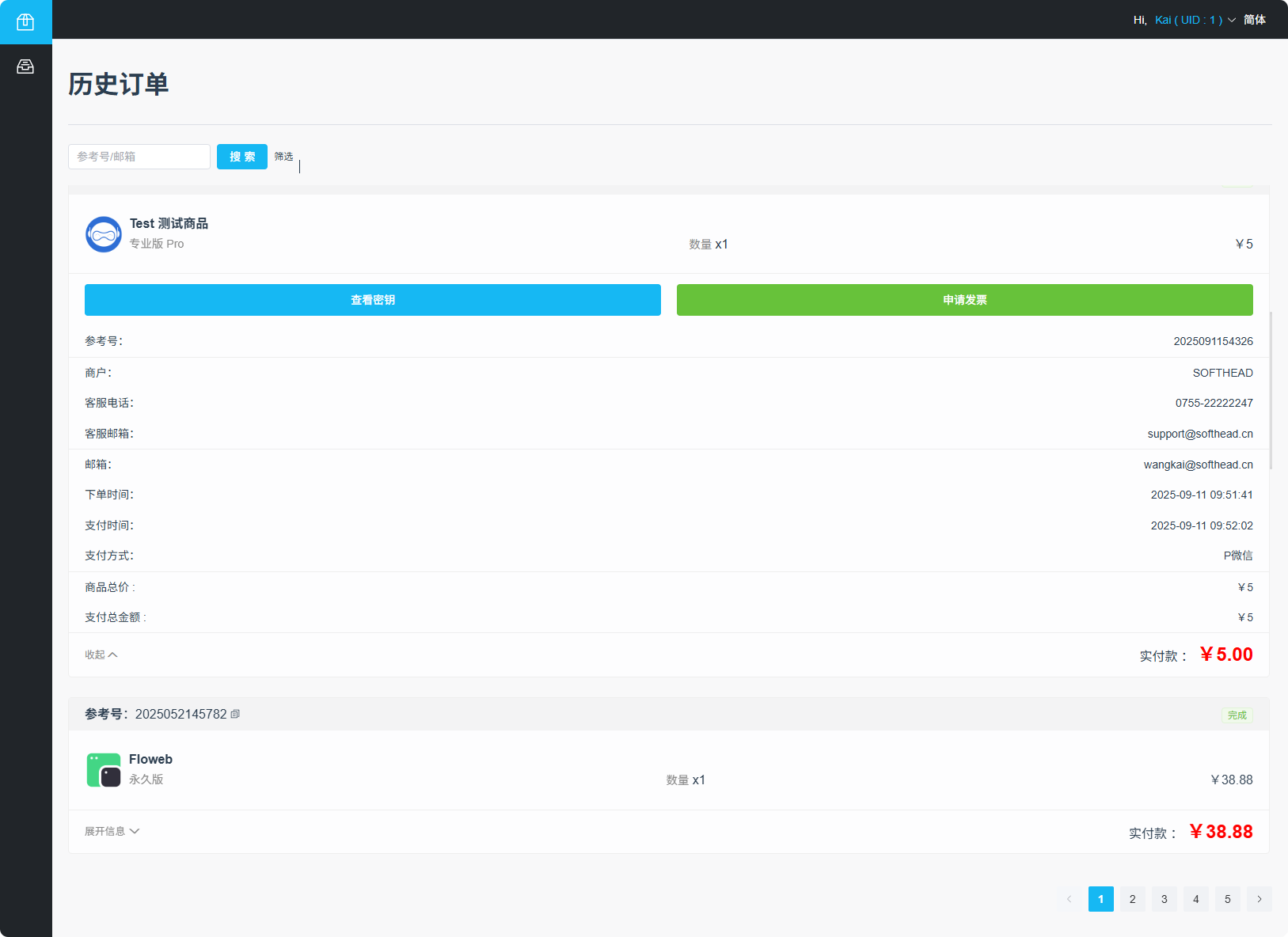
User Center Orders and Invoice View